Category: Automations › Invoicing & Accounting · Best for: Anyone digitising paper bills · Platform: n8n · Steps: 9
What it does
Drop receipt photos in Google Drive, and it reads the numbers for you.
https://rapidapi.com/restyler/api/receipt-and-invoice-ocr-api
Works with: Google Drive, Google Sheets
What you get
- The n8n workflow file (
workflow.json), ready to import - This setup guide
- The list of fields to change for your own accounts (see Install below)
- Email support if you get stuck
Before you start
-
An n8n account. Easiest: n8n Cloud (free trial). Self-host for free with Docker:
docker run -it --rm -p 5678:5678 -v n8n_data:/home/node/.n8n docker.n8n.io/n8nio/n8n, then open http://localhost:5678. -
Accounts and API keys for these services:
- API key sent as an HTTP header (see the node for which service): how to connect (used by OCR recognize)
- Google (Sheets, Gmail, Drive, Calendar, Docs): how to connect (used by On new file in Google Drive, Load files from Google Drive folder, Download file for OCR, Save OCR result into Sheets, Get already processed rows from Sheets)
Install
- In n8n, click Create workflow (top right).
- Click the ⋯ menu → Import from file and choose
workflow.json. Or open the file, copy everything and paste it onto the empty canvas with Ctrl/Cmd + V. - Open each node with a red warning triangle and pick or create the matching credential from the list above.
- Point these fields at your own sheets, chats and accounts:
- Save OCR result into Sheets →
sheetName: choose your own - Save OCR result into Sheets →
documentId: choose your own - Get already processed rows from Sheets →
sheetName: choose your own - Get already processed rows from Sheets →
documentId: choose your own
- Save OCR result into Sheets →
- Click Save.
Test it
- Click Test workflow (or Execute workflow). When clicking ‘Test workflow’ starts it. Trigger it once with real sample data.
- Click each node to check its output. A green tick means the step worked.
- Fix any red node: it's almost always a credential or a field that still points at a sheet or chat that isn't yours.
Go live
Toggle Active (top right). From now on it runs on its own. Check Executions in the left sidebar to see every run.
How it works, step by step
- When clicking ‘Test workflow’ starts the workflow (Manual).
- On new file in Google Drive starts the workflow (Google Drive).
- Load files from Google Drive folder uses Google Drive to fileFolder.
- Get already processed rows from Sheets uses Google Sheets.
- Filter processed files uses Merge.
- Download file for OCR uses Google Drive to download.
- OCR recognize calls an external API (https://receipt-and-invoice-ocr-api.p.rapidapi.com/recognize).
- Unserialize response JSON reshapes the data for the next step.
- Save OCR result into Sheets uses Google Sheets to appendOrUpdate.
India & US notes
India: add GSTIN, HSN/SAC and GST amount columns to your sheet so the AI extracts them too. US: add sales-tax and EIN columns as needed.
Extra setup notes
These notes are also on the canvas as yellow sticky notes:
Recognize invoices and convert them into structured JSON
Video Demo
Quick OCR playground
1. Get your OakPDF OCR API key here:
https://rapidapi.com/restyler/api/receipt-and-invoice-ocr-api
2. Poceed to the OCR Playground and upload your document or use example files:
The API can recognize any document format: medical, financial, legal -- let me know which format you want to try and I will be happy to add it to the Playground!
Running the n8n Workflow
This workflow allows you to recognize a folder with receipts or invoices (make sure your files are in .pdf, .png, or .jpg format). The workflow can be triggered via the "Test workflow" button, and it also monitors the folder for new files, automatically recognizing them.
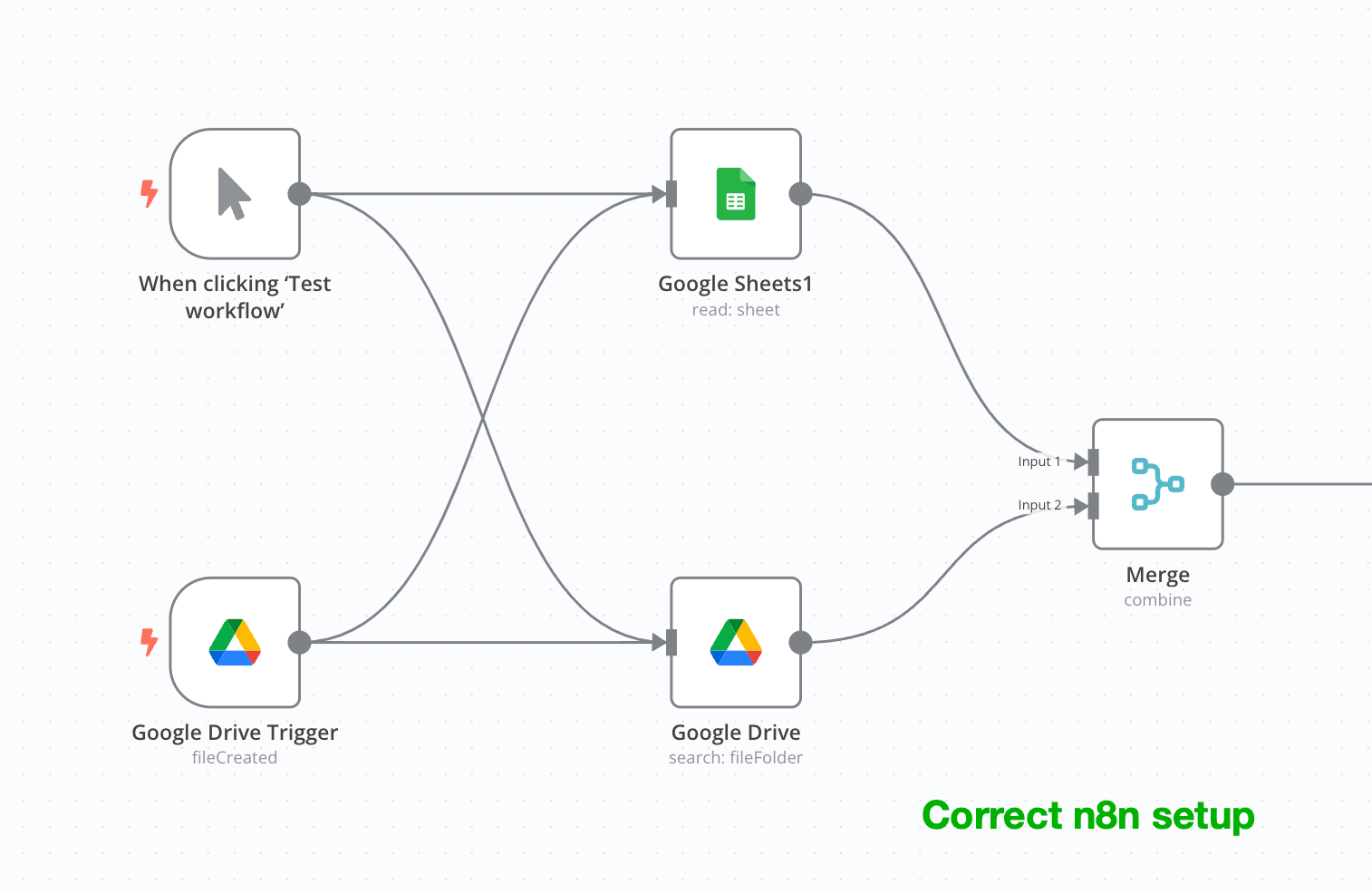
1. n8n import glitch
After import, the trigger node "When clicking 'Test workflow'" might be disconnected. You need to connect it via 2 arrows to "Google Sheets1" and "Google Drive" nodes. So, the workflow has 2 triggers - via button, and via Google Sheets "new file" event - both of these triggers should be connected to 2 nodes. Here is how it should looks like: https://ocr.oakpdf.com/n8n_fix.png
2. Set up RapidAPI HTTP auth key
Create new "HTTP header" n8n credential and paste your RapidAPI key from https://rapidapi.com/restyler/api/receipt-and-invoice-ocr-api into it. https://ocr.oakpdf.com/n8n_api_key.png
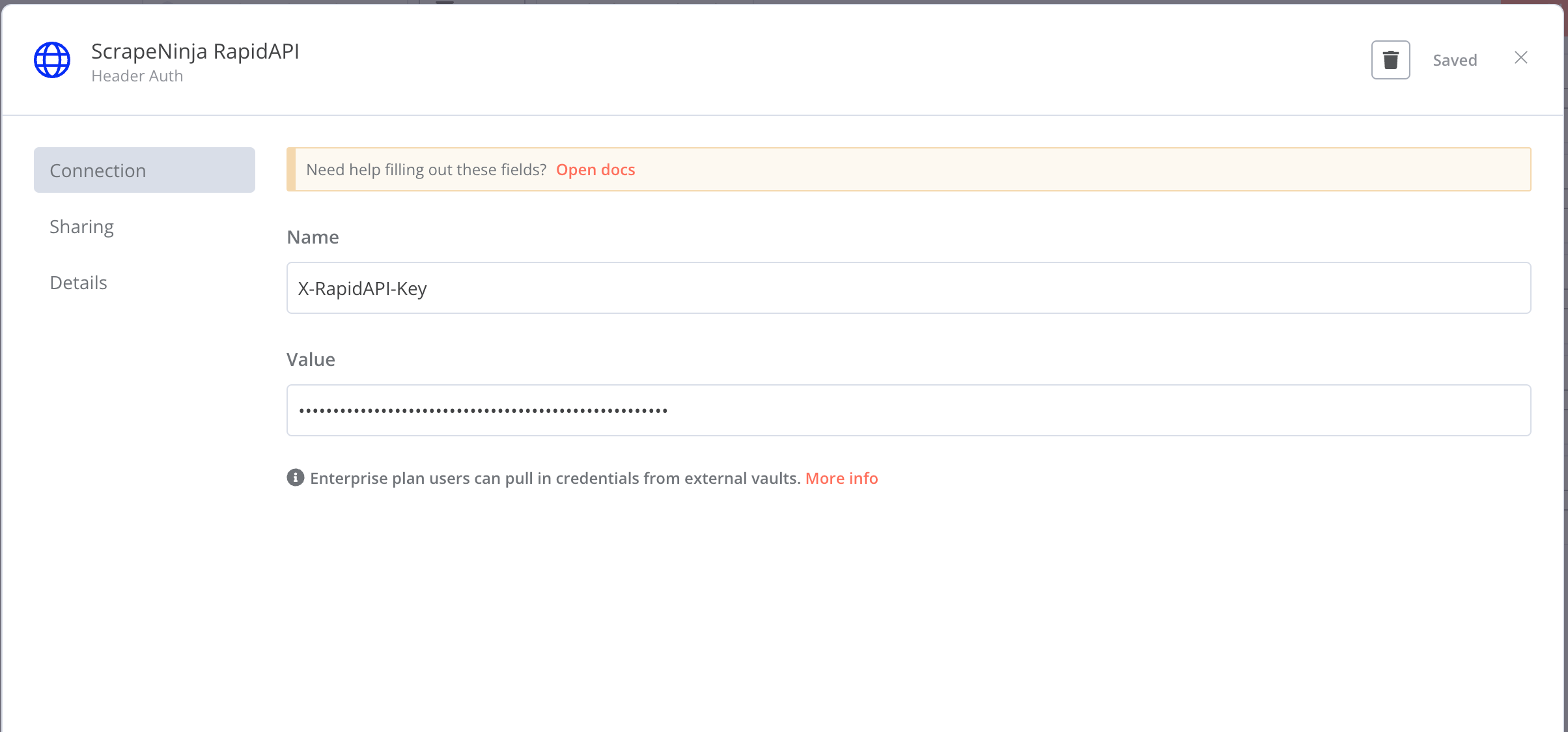
Make sure "HTTP Request" node uses this credential.
3. Set up your Google Auth
You need a Google connection to work with your Google Sheets and Google Drive accounts: https://docs.n8n.io/integrations/builtin/credentials/google/oauth-generic/#finish-your-n8n-credential
4. Set up Google Sheets
Copy this Google Sheets document: https://docs.google.com/spreadsheets/d/1G0w-OMdFRrtvzOLPpfFJpsBVNqJ9cfRLMKCVWfrTQBg/edit?usp=sharing
Custom document formats and advanced usage
Email: you@yourbusiness.com Linkedin:
Troubleshooting
- "Credentials not found": open the node and select your credential again.
- Google "access blocked": in Google Cloud, add your email as a test user on the OAuth consent screen.
- Webhook not firing: copy the node's Production URL (not Test URL) into the other app, and make sure the workflow is Active.
- AI node errors: check your API key has billing enabled and the model name exists on your plan.
- Nothing happens on schedule: the workflow must be Active, and self-hosted n8n must stay running.
Need help?
Reply to your Morning Method order email and we'll help you get it running.
© Morning Method