Category: Automations › Lead Generation & CRM · Best for: Retail shops and restaurants · Platform: n8n · Steps: 11
What it does
People sign up, get a coupon, and visit your shop. Each one is saved as a lead.
Create a Google Sheet like this (Fill only the column "COUPON")
Works with: Google Sheets
What you get
- The n8n workflow file (
workflow.json), ready to import - This setup guide
- The list of fields to change for your own accounts (see Install below)
- Email support if you get stuck
Before you start
-
An n8n account. Easiest: n8n Cloud (free trial). Self-host for free with Docker:
docker run -it --rm -p 5678:5678 -v n8n_data:/home/node/.n8n docker.n8n.io/n8nio/n8n, then open http://localhost:5678. -
Accounts and API keys for these services:
- Google (Sheets, Gmail, Drive, Calendar, Docs): how to connect (used by Duplicate Lead?, Get Coupon, Update Lead)
Install
- In n8n, click Create workflow (top right).
- Click the ⋯ menu → Import from file and choose
workflow.json. Or open the file, copy everything and paste it onto the empty canvas with Ctrl/Cmd + V. - Open each node with a red warning triangle and pick or create the matching credential from the list above.
- Point these fields at your own sheets, chats and accounts:
- Duplicate Lead? →
sheetName: choose your own - Duplicate Lead? →
documentId: choose your own - Get Coupon →
sheetName: choose your own - Get Coupon →
documentId: choose your own - Update Lead →
sheetName: choose your own - Update Lead →
documentId: choose your own
- Duplicate Lead? →
- Click Save.
Test it
- Click Test workflow (or Execute workflow). Webhook starts it. Trigger it once with real sample data.
- Click each node to check its output. A green tick means the step worked.
- Fix any red node: it's almost always a credential or a field that still points at a sheet or chat that isn't yours.
Go live
Toggle Active (top right). From now on it runs on its own. Check Executions in the left sidebar to see every run.
How it works, step by step
- Webhook starts the workflow (Webhook).
- On form submission starts the workflow (Form).
- Respond KO uses Respond To Webhook.
- Respond OK uses Respond To Webhook.
- Form Fields reshapes the data for the next step.
- Duplicate Lead? uses Google Sheets.
- Is Duplicate? checks a condition and routes items accordingly.
- Get Coupon uses Google Sheets.
- Token SuiteCRM calls an external API (=https://SUITECRMURL/Api/access_token).
- Create Lead SuiteCRM calls an external API (https://SUITECRMURL/Api/V8/module).
- Update Lead uses Google Sheets to update.
India & US notes
India: Zoho CRM and WhatsApp follow-ups are the most common combo; you can swap the CRM node for Zoho CRM. US: HubSpot free CRM is the usual starting point.
Extra setup notes
These notes are also on the canvas as yellow sticky notes:
STEP 1
Create a Google Sheet like this (Fill only the column "COUPON")
[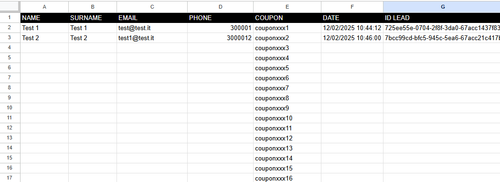 ]
This is the basic Google Sheet used in this Workflow:
STEP 2 - MAIN FLOW
This workflow is ideal for businesses looking to automate lead generation and management, especially when integrating with CRM systems like SuiteCRM and using Google Sheets for data tracking.
If you use an external form, hook the webbook trigger and the two webhooks "Respond KO" and "Respond OK" to the workflow.
It works with SuiteCRM 7.14.x and 8.x version. Remeber to create a Lead custom fields called 'coupon' on SuiteCRM.
Check if the lead has already received the coupon
Find the first available unassigned coupon
Enter the lead with the relative coupon on Suite CRM. Change SUITECRMURL, CLIENTSECRET and CLIENTID
To create the CLIENTSECRET and CLIEDID go to Admin -> Oauth2 Client and Token -> and click on "New CLient Credentials Client"
For the full tutorial step-by-step here the official SuiteCRM Docs
Troubleshooting
- "Credentials not found": open the node and select your credential again.
- Google "access blocked": in Google Cloud, add your email as a test user on the OAuth consent screen.
- Webhook not firing: copy the node's Production URL (not Test URL) into the other app, and make sure the workflow is Active.
- AI node errors: check your API key has billing enabled and the model name exists on your plan.
- Nothing happens on schedule: the workflow must be Active, and self-hosted n8n must stay running.
Need help?
Reply to your Morning Method order email and we'll help you get it running.
© Morning Method